

Design your widget
A tour of the configurator, from templates and the Basic view to every setting, the preview and moving designs between accounts.
The configurator is where you design a widget and decide how it behaves. It shows your changes live, on real or demo data, before anything reaches your site. Every setting is listed with its options in Configurator options.
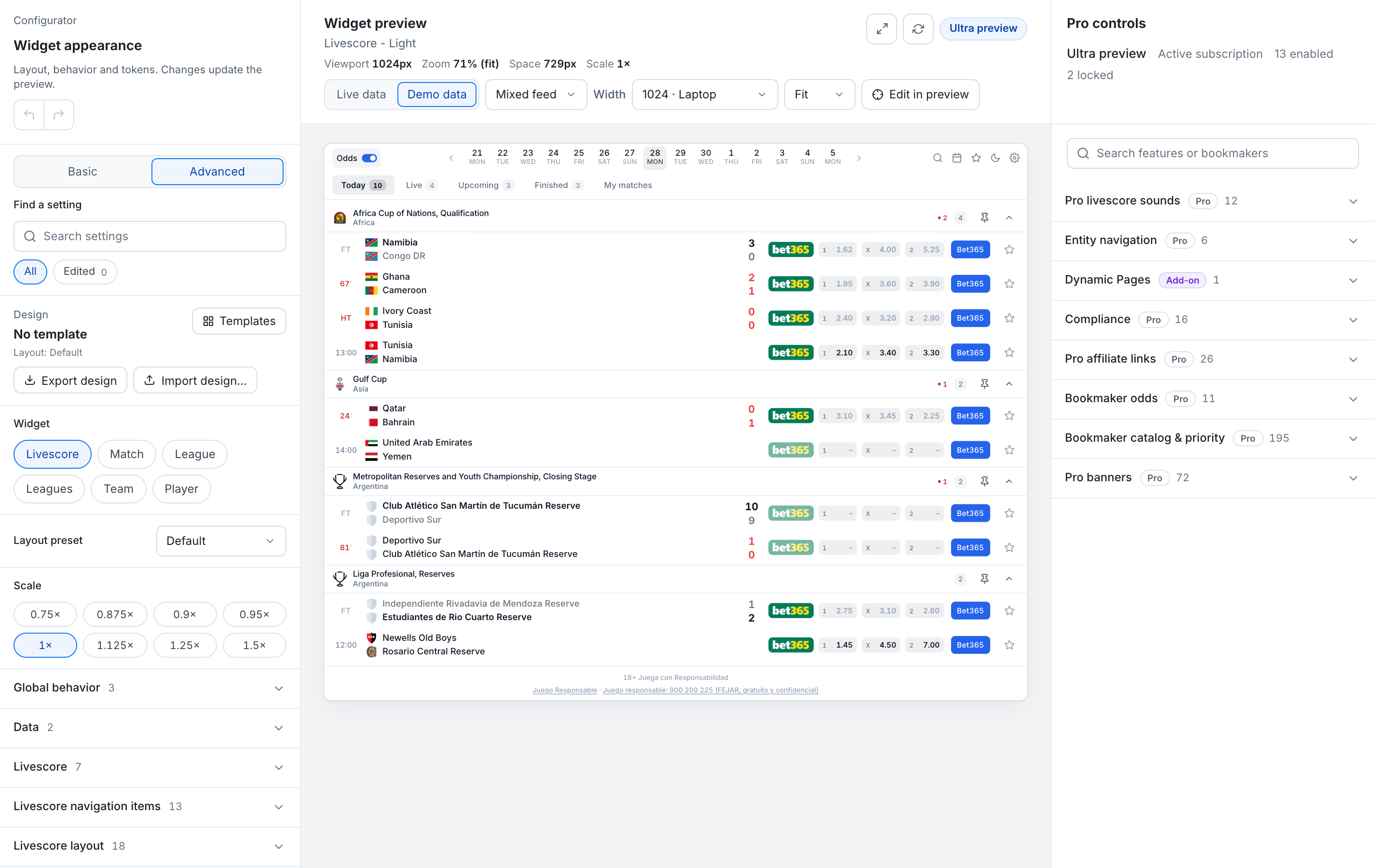
The three columns
- Left: settings. The widget you are designing, its template and every setting, in a Basic or an Advanced view. Find a setting searches labels, descriptions and the part of the widget a setting changes; Edited lists only what you have changed.
- Middle: preview. The widget as visitors will see it, with Live data or Demo data, a Width selector, a zoom menu and Edit in preview.
- Right: your plan. In the admin this column is called Current plan. It shows your plan, how many of its features are enabled, and the settings that depend on your plan: navigation, Dynamic Pages, compliance, sounds, odds, affiliate links, banners, branding and streaming. Features your plan does not include are grouped under Not in your plan, with a lock and a note such as Requires Pro. In the public playground the same column is called Pro controls.
In the admin, the editor sits next to the Configurations, Domains and Get code tabs. On a screen narrower than 900 px the columns become tabs too: Settings, Preview and Plan and features.
Basic and Advanced
Basic keeps the decisions that change the look at a glance:
- Layout preset;
- Color scheme: light or dark;
- Primary color: buttons, links and highlights;
- Font;
- Density: Compact, Standard or Wide. It changes row heights, gutters and gaps together;
- Corners: Square, Standard or Rounded, for cards, buttons and stat bars.
If you changed one of these values in Advanced, Basic shows Custom and keeps your value until you pick an option. All settings (Advanced) opens every setting, grouped in sections.
Templates
Templates opens a gallery of finished designs in the General, Competitions and Teams categories, which you can filter by style: Modern, Classic, Futuristic and Aggressive. Every thumbnail is drawn by the real widget.
- Apply full design makes the design exactly the template's.
- Apply, keep my customizations keeps the visual changes you made on top of your current design.
- Reset to template name goes back to the template after you changed it.
- Duplicate as personal copies a template to My templates, where you can change it.
A template changes the look only: colours, fonts, corners, spacing, the layout preset and the style of each part. It does not change the widget type, the item it shows, the language, the navigation, the feed settings, odds, affiliate links or compliance.
Layout presets
- Default: a dense list, with separators between rows. Many matches fit on screen.
- Carded: each competition sits on its own card, with more air between blocks.
Designs made with the older Edge layout keep working.
Edit in preview
Turn on Edit in preview and click any part of the widget, such as a match row, a score, a tab or a header. The settings column then shows only the settings of that part. Hovering a setting outlines, in the preview, every part it affects. While the mode is on, links in the preview do not open.
Preview width and demo data
The widget adapts to the width of its container, not to the size of the screen. Set Width to the width of the column where it will sit on your site: phone sizes from 320 px, tablet, laptop (1024 px, the default), desktop and wide, or a custom value. Fit scales the preview to the space available without changing its layout.
Demo data replaces live matches with a fixed set of live, finished and upcoming matches, long names and missing logos, so you can check every state at any time of day.
What each part of the configurator covers
| Section | Main settings |
|---|---|
| Global behavior | Widget height, Show all entity headers, Locale (the widget's language) and Compact mode. |
| Data | Featured leagues and Show only featured leagues. Available on every plan. |
| Livescore | Default tab, Date picker mode, Team logos in feed, Team names, Period scores in rows, TV indicator and the Live ticker. |
| Livescore navigation items | Which tabs and toolbar icons appear, the visitors' Odds switch, Live as switch and Tab counters. |
| Match behavior / Match tabs | Default tab, the back button, the Odds and TV actions, and a switch per tab. |
| League behavior, Team behavior, Player behavior | Default tab, the back button and a switch per tab. |
| Entity headers | The header above match, competition, team and player views. |
| Components | The style of each part: toolbar, match rows, headers, tabs, standings and other data blocks. |
| Colours, radius, density, typography | Fine-grained design, usually set by a template. |
Some labels follow the widget you select: with Match selected, for example, the Entity navigation section is called Match navigation.
Team names
Team names (for match rows) and Match header team names offer Auto (fit to space), Full name, Shortened name and Team code (ATL). With Auto, full names are shown while they fit on one line. When a name would be cut, the whole competition block switches to the official team codes (ATL, NYC). Shortened name drops FC, CF, SC and similar. The full name is always available on hover and to screen readers.
Widget height
Leave Widget height at 0 and the widget grows with its content, so your page scrolls. Set a height and the widget scrolls inside itself; its toolbar and competition headers then stick inside the widget.
Live ticker
Live ticker adds a strip of live matches Above the feed or Below the feed, with Compact or Extended cards. Keep ticker visible keeps it on screen while visitors scroll.
Undo and saving
Undo and Redo sit at the top of the settings column. Your edits stay in the editor until you save: in the admin, Save and apply (or Save configuration) puts them live, and Reload saved throws away unsaved edits. See Domains, configurations and saving.
Moving a design
- In the public playground, Export design and Import design… move the look only. Use them to bring a design you tried in the playground into your account.
- In the admin, Export configuration downloads or copies the whole configuration, and Import JSON in the Configurations tab loads one into the editor. Before an import changes anything, a review lists what will be applied and what your plan will ignore.