

Quickstart
Put your first widget on your website in about ten minutes. Add your domain, design the widget, save it and paste the code.
You need a SoccersAPI account (the Free plan is enough to start) and access to edit the HTML of your website. To try designs before signing up, use the public playground: it has the same editor, without saving or installation code.
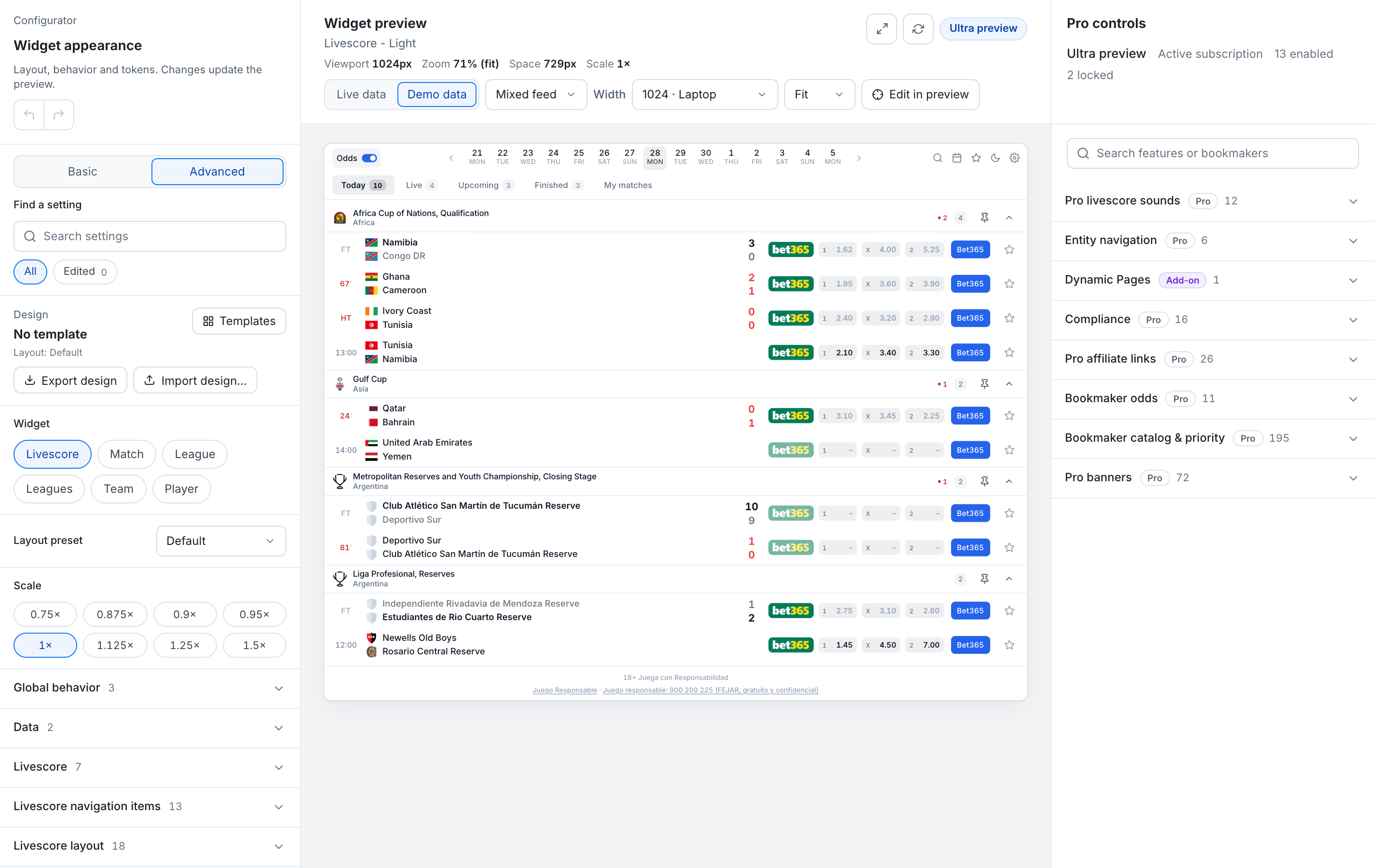
Open the configurator
Sign in to the SoccersAPI admin and open Widgets › Configurator. The page opens on the Livescore widget.
Add your domain
Open the Domains tab, select Add domain and type the address of your
site without https:// or a path, for example example.com. Then select
Add.
A domain also covers its subdomains: example.com lets the widget run on
www.example.com and scores.example.com. You need an approved domain before
you can save and get the installation code.
Choose the widget and its look
In the Settings tab, under Widget, pick Livescore (every plan) or one of the widgets that show a single match, competition, team or player (Pro and Ultra). Open Templates to start from a finished design, then use the Basic view to set light or dark, the primary colour, the font, the density and the corners.
The preview updates as you go. Set its Width to the width of the column where the widget will sit on your site. See Design your widget.
Save
Select Save and apply. That is what puts your design live: from now on, every approved domain that uses the default configuration loads it. There is no separate publish step.
Copy the code and paste it on your site
Open the Get code tab, check the domain under Install on domain and select Copy installation code. Paste the code into your page where the widget should appear:
- Free: an iframe, one line of HTML.
- Starter, Pro and Ultra: a script line and a widget tag.
See Add the widget to your site for the code itself and for WordPress, Wix, Shopify and other site builders.
Check it on your site
Open the page on your domain, on a computer and on a phone. Open a match to see what happens on click. Back in the admin, Check installation traffic confirms that the widget is sending requests from that domain.
Changing the widget later
Change the design and select Save and apply again. The code on your site stays the same: it always loads the saved configuration of its domain. Visitors see the change within about 30 seconds, the next time they load the page.
You only need new code when you change the widget type, the item that a Match, League, Team or Player widget shows, or the language written in the code, or when you move between the Free plan and a paid plan.
If something does not show
Start with Troubleshooting. Check first that the page runs on the domain you approved and that you copied the code from Get code after saving.